
How Sync Works
In this guide you will learn:
- The sync page layout and what each element shows
- How encounters are created and deduplicated on the server
- How images are uploaded and committed
- How progress tracking, errors, and retries work
The sync page
Section titled “The sync page”The sync page shows a card grid with one card per population. Each card displays:
- Population name and a syncing indicator if a sync is in progress
- Status counts — pending and synced encounters and images
- Manifest list — each approved manifest with its version, scan job name, encounter count, and image count
- Action buttons per manifest: Review, Ensure Individuals, Reset, and Sync
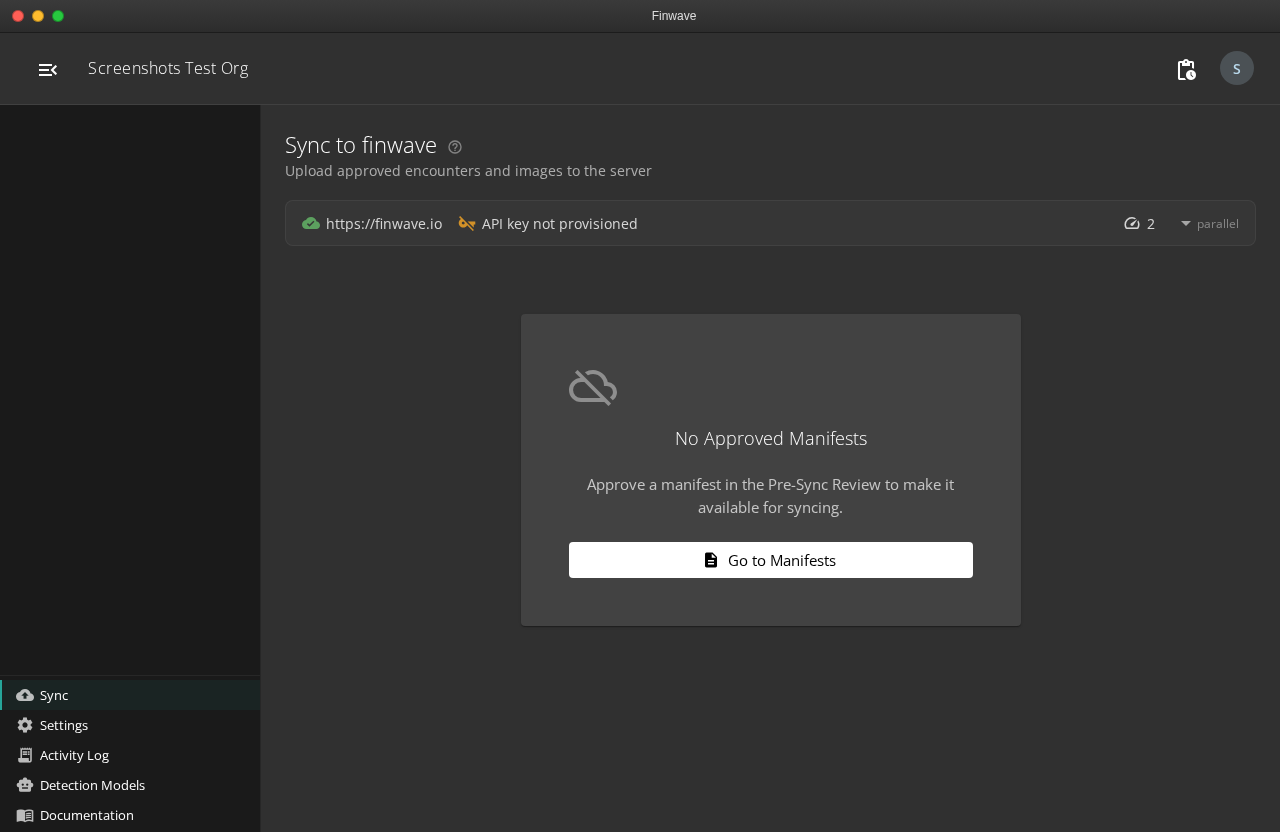
A global status bar at the top shows server connection, API key status, and the concurrency selector (1-4 parallel uploads).
Sync flow
Section titled “Sync flow”When you click Sync on a manifest, the engine processes each approved encounter:
- Create or find encounter — The engine checks if the encounter already exists on the server (matching by date, location, and photographer). If found, it reuses the existing encounter. If not, it creates a new one.
- Upload images — Each image is uploaded via a SAS URI (for local files) or copied server-side (for Azure blob storage). Already-uploaded images are recognized by their idempotency key and skipped.
- Commit — After images are uploaded, a commit request triggers server-side processing: blob verification, resize variant generation (thumbnails, previews), FileItem creation, and ML pipeline.
- Mark synced — On success, the encounter and its scans are marked as synced locally.
Deduplication
Section titled “Deduplication”The sync engine prevents duplicate encounters and images:
- Encounter dedup — Before creating an encounter, the engine searches the server for an existing match. If found, it proceeds directly to image upload, filling in any missing images.
- Image idempotency — Each image has a unique idempotency key. The server tracks upload sessions by key, so re-syncing the same image returns “Complete” without re-uploading.
Progress tracking
Section titled “Progress tracking”During sync, the population card shows:
- A progress bar with encounter and image counts
- The current encounter being processed (name, location, photographer)
- Individual image upload statuses (expandable)
- A link to view the encounter on the server once created
Error handling
Section titled “Error handling”Errors are grouped by encounter and shown in an expandable section:
- Actionable errors — Upload failures, server errors, authentication issues. Click Retry to re-upload only the failed images.
- Skipped errors — Informational (e.g., duplicate encounters that were expected). No action needed.
The retry button uploads only images that failed. Already-uploaded images are not duplicated.
Transient error recovery
Section titled “Transient error recovery”The sync engine automatically retries on transient server errors (502, 503, 5xx):
- Upload sessions — 1 retry on 5xx
- Commits — 3 retries with exponential backoff (2s, 4s)
- Blob copies — 3 retries with exponential backoff (2s, 4s)
- Blob uploads — 3 retries with jittered exponential backoff (5s, 10s)
If all retries fail, the encounter is marked as failed and you can retry manually.
Partial sync
Section titled “Partial sync”If some images in an encounter fail but others succeed, the encounter is marked partial. The successfully uploaded images are not lost. Click Retry to re-upload only the failures.
Related
Section titled “Related”- Sync Configuration — API key, concurrency, and settings
- Upload Process — Technical details of SAS upload and blob copy
- Sync Troubleshooting — Fixing common sync errors
- Pre-Sync Review — Reviewing encounters before sync