
Getting Help
In this guide you will learn:
- How to diagnose issues using the activity log
- Where to report bugs and request features
- How to check worker and sync status
Activity log
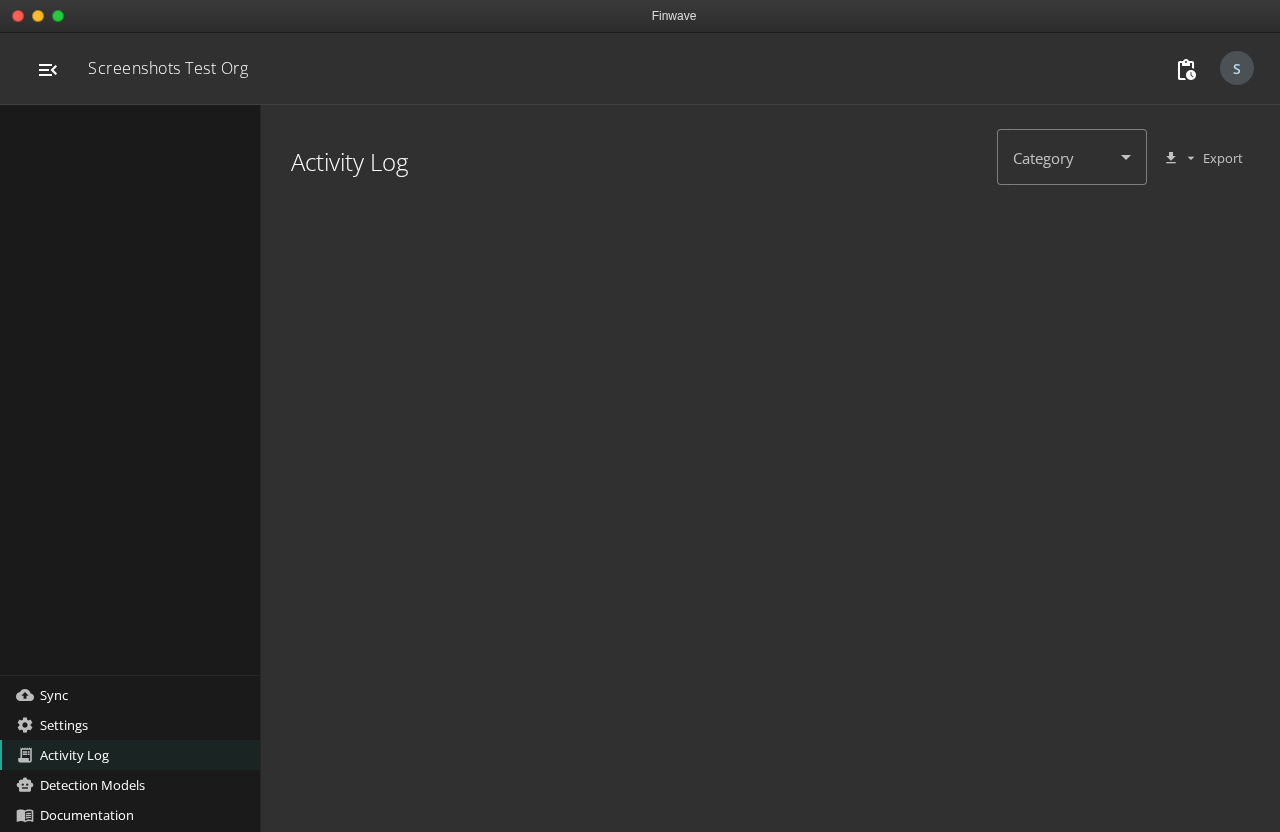
Section titled “Activity log”The desktop app keeps a detailed activity log of every action: scans, manifests, sync attempts, errors, and configuration changes. Open it from the Activity Log link in the sidebar.
Use the activity log to:
- See timestamps for when operations started and finished
- Find error messages from failed syncs or scans
- Confirm that a scan or sync completed successfully
- Share diagnostic details when reporting issues
Reporting issues
Section titled “Reporting issues”Report bugs and request features on the finwave GitHub repository:
- Bug reports — Include the activity log entries, the page/feature you were using, and steps to reproduce the issue.
- Feature requests — Describe what you are trying to accomplish and why the current workflow does not support it.
You can also reach the team by email. Your organization admin can provide the support contact.
Checking sync status
Section titled “Checking sync status”If a sync appears stuck or failed:
- Check the Sync page for error messages on the population card. Errors are grouped by encounter with details.
- Check the Activity Log for the sync session entry and any error events.
- If images show as “partially synced,” click Retry to re-upload only the failed images.
- If encounters show as “Conflict,” hit Sync again — the engine will find the existing encounter and check for missing images.
Checking cloud discovery status
Section titled “Checking cloud discovery status”Cloud discovery jobs (scanning Azure blob storage) run on a remote worker. If a job appears stuck:
- The worker processes large datasets in chunks of 10,000 files. A dataset with 100K+ images may take several hours.
- The desktop app may show “failed” if the polling timeout is exceeded, but the worker may still be processing. Check with your admin if unsure.
- Once the worker finishes, results are sent back via Service Bus and can be imported from the desktop app.
Common quick fixes
Section titled “Common quick fixes”| Problem | Solution |
|---|---|
| API key shows “access denied” | Ask your admin to enable Desktop Sync in population settings |
| Sync button disabled | Check that your API key is provisioned (shown in the status bar) |
| Encounters stuck as “incomplete” | Check the pre-sync review for the specific reason (missing GPS, unresolved photographer, etc.) |
| ”Photographer not resolved” | Go to the manifest editor’s Photographer Resolution section |
| Images not appearing after sync | Use Reset on the manifest row, then Sync again |
Related
Section titled “Related”- How Sync Works — Understanding the sync pipeline
- Sync Troubleshooting — Fixing specific sync errors
- What Is the Desktop Client? — Overview of the desktop app