
Azure Blob Storage
In this guide you will learn:
- What Azure blob storage is used for in finwave
- How to add a storage connection in Settings
- The difference between SAS token and connection string authentication
- How cloud discovery and blob-to-blob sync work
- Common authentication issues and how to fix them
Why connect Azure storage
Section titled “Why connect Azure storage”If your image data lives in Azure Blob Storage rather than on a local drive, you can connect the storage account to finwave for two purposes:
- Cloud discovery — Scan blob containers to build a file inventory without downloading the entire dataset to your machine. The scan runs on a remote worker.
- Blob-to-blob sync — During sync, images are copied directly between Azure storage accounts (source to finwave’s storage) without passing through your desktop. This is much faster for large datasets.
Adding a connection
Section titled “Adding a connection”Go to Settings in the sidebar and find the Azure Storage Connections section.
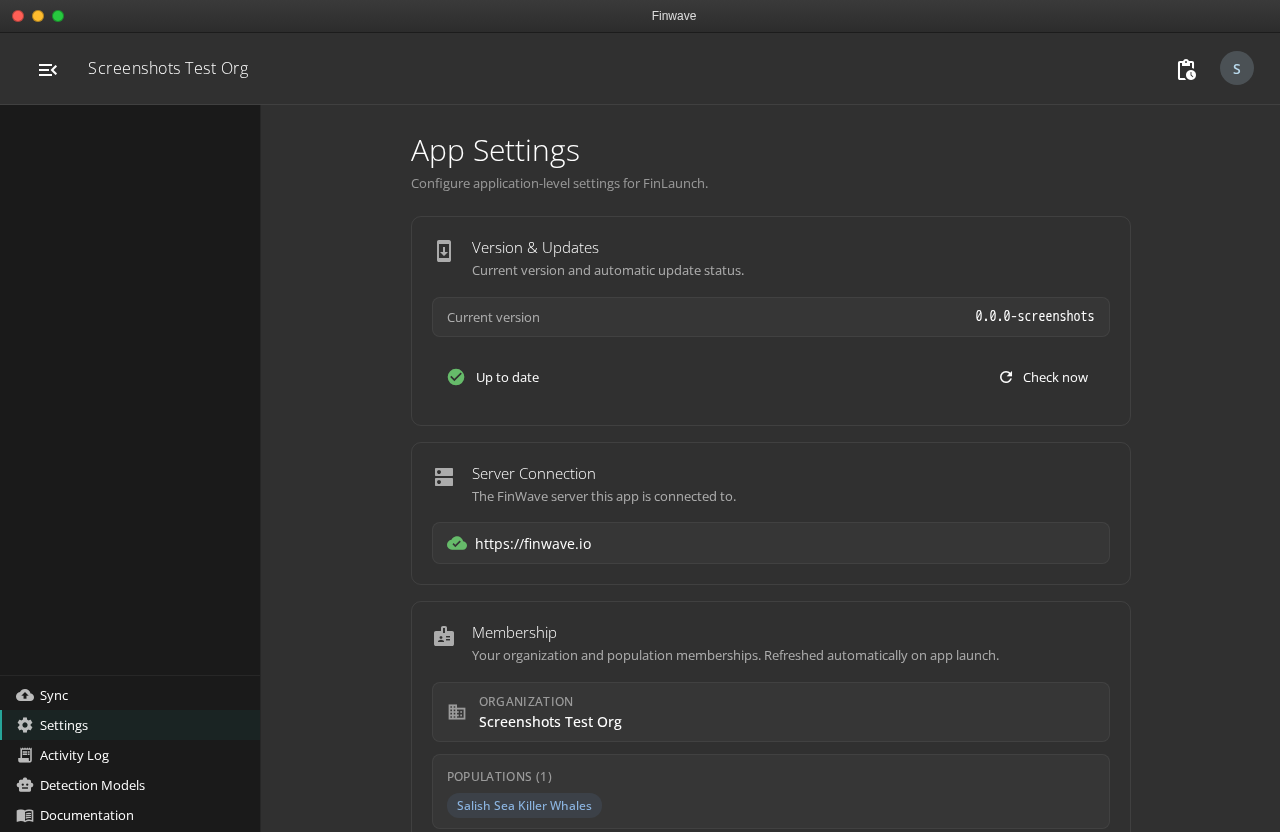
Each connection requires:
- Name — A label for this connection (e.g., “Research Data Lake”)
- Account Name — The Azure storage account name (e.g.,
myresearchdata) - Auth Type — Choose SAS Token or Connection String
- Credentials — The SAS token or connection string value
SAS token authentication
Section titled “SAS token authentication”A SAS (Shared Access Signature) token provides scoped, time-limited access to your storage account.
Your SAS token must have:
- Permissions: Read + List (minimum)
- Resource types: Service + Container + Object (
srt=sco) - No IP restrictions if you plan to use blob-to-blob sync (the finwave server needs to read from your storage, not just your desktop)
Generate a SAS token from the Azure Portal: Storage Account > Shared access signature > Configure permissions > Generate.
Connection string authentication
Section titled “Connection string authentication”A connection string contains the account key, which grants full access. The desktop app extracts the AccountKey and generates short-lived per-blob SAS tokens on the fly (read-only, 1-hour expiry).
This is more convenient but gives broader access. Use SAS tokens if your security policy requires scoped credentials.
Cloud discovery
Section titled “Cloud discovery”After adding a connection, you can create a scan job that targets a blob container:
- Create a new scan job and choose Azure Blob Storage as the source
- Select your storage connection and specify the container name
- Optionally set a prefix filter (e.g.,
2024/to scan only one year) - Click Scan — the job is submitted to the finwave server, which dispatches it to a cloud worker
The worker lists all blobs, downloads image headers (128KB each, for EXIF extraction), and analyzes spreadsheets. Results are sent back and imported into your local database.
Blob-to-blob sync
Section titled “Blob-to-blob sync”When you sync a manifest that was created from a cloud scan, images are copied server-side:
- The desktop generates a read SAS URL for each source blob
- These URLs are sent to the finwave server
- The server copies blobs directly using
SyncCopyFromUri— no data passes through your desktop - Upload sessions are committed and ingested as normal
This is significantly faster than downloading images to your machine and re-uploading them.
Troubleshooting
Section titled “Troubleshooting”| Error | Cause | Fix |
|---|---|---|
| 403 CannotVerifyCopySource | SAS token expired or lacks Read permission | Generate a new SAS with Read+List and srt=sco |
| 403 AuthenticationFailed | IP-restricted SAS token | Remove IP restrictions or use connection string |
| Cloud scan stuck | Large dataset, worker still processing | Check with admin — worker processes in 10K chunks |
Related
Section titled “Related”- Discovery — How local and cloud scanning works
- Upload Process — SAS upload vs blob-to-blob copy details
- Sync Troubleshooting — Fixing sync errors