
Directory Management
In this guide you will learn:
- How the Directories view works
- How to add, pause, resume, and remove directories
- How rescanning works
- How directories connect to scan jobs and manifests
The Directories view
Section titled “The Directories view”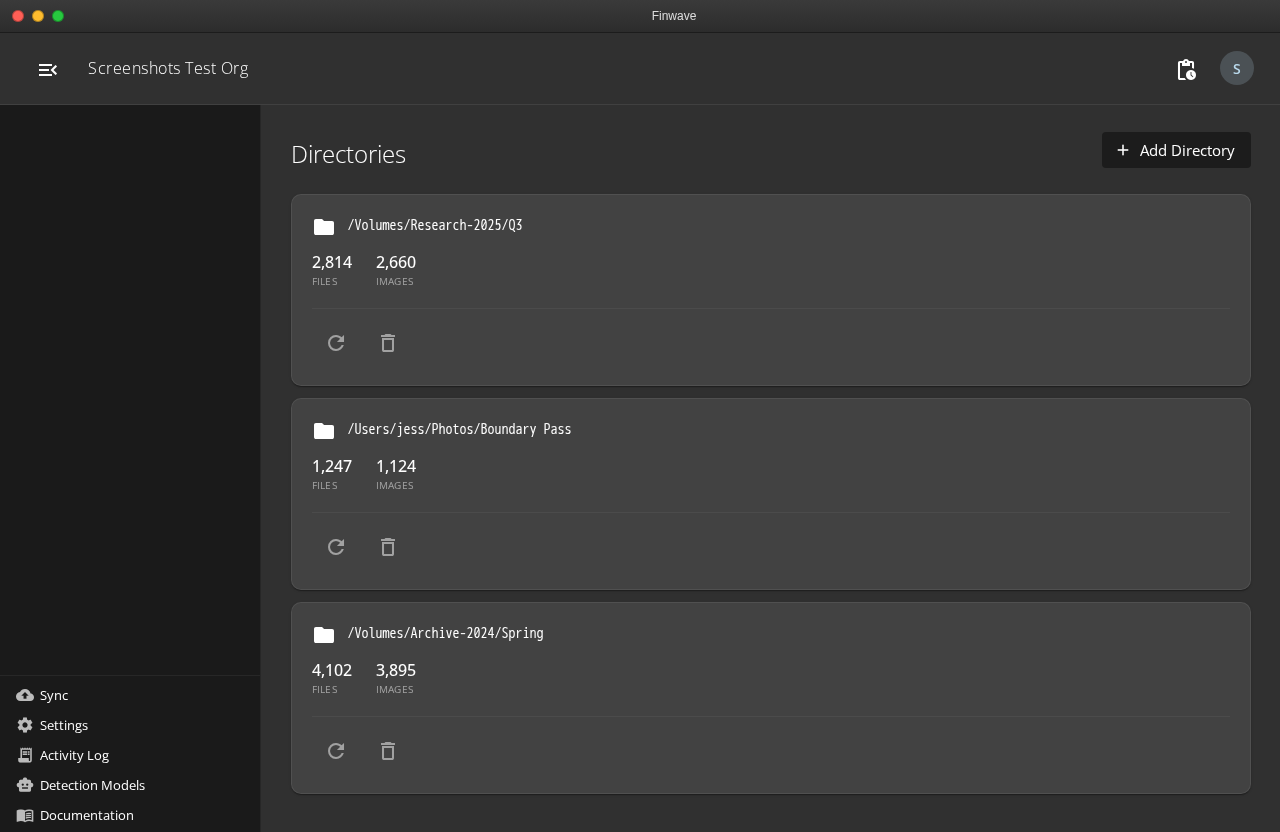
The Directories section (accessible from the sidebar) shows every directory registered with the client. Each entry displays the directory path, its status, file count, image count, and the last scan date.
Directory states
Section titled “Directory states”Each directory has one of three states:
| State | Meaning |
|---|---|
| Watching | The directory is active and registered with the client. This is the default state after adding a directory. |
| Paused | The directory is temporarily silenced. It remains in your configuration but is not included in new scan jobs. Useful when you disconnect an external drive or reorganize files. |
| Removed | The directory is removed from the client’s list entirely. |
Adding directories
Section titled “Adding directories”Click Add Directory and select a folder through the system folder picker. The directory is registered immediately and shows up in the sidebar under its linked population.
After adding a directory, you can include it in a scan job to discover its contents. See Discovery for how scanning works.
Pausing and resuming
Section titled “Pausing and resuming”You can pause a directory to temporarily exclude it from the client’s active set. This is useful when:
- An external drive is disconnected
- You are reorganizing files and don’t want partial scans
- You want to focus on other directories first
Click Resume to reactivate a paused directory.
Rescanning
Section titled “Rescanning”Rescanning re-indexes a directory that has already been scanned. Use it when you have added new files to the directory, reorganized the folder structure, or need to update the file inventory after changes.
Click Rescan on any directory entry to trigger a fresh scan.
Connecting directories to scan jobs
Section titled “Connecting directories to scan jobs”Directories serve as the input for scan jobs. When you create a scan job, you select which directories to include. The scan job then discovers all files in those directories and builds the file tree that feeds into the manifesting process.
A directory can be linked to multiple scan jobs over time (for example, if you rescan after adding new data), and the sidebar shows which scan jobs and manifests are associated with each directory.
Related
Section titled “Related”- Discovery — how the initial scan works
- Manifesting — how manifests are generated
- Manifest Editing — the editing and approval interface